Three years ago I captioned a 60-second clip entirely by hand. It took almost three hours, my wrists filed a formal complaint, and I still misspelled the guest's name in the final export. That was the day I started hunting for auto captions short video creators actually rely on, and I have never typed a caption manually since.
These days the whole job takes about ten minutes per clip, and most of that is me sipping coffee while I review. The performance difference was not subtle either. My captioned clips consistently hold viewers longer than my old uncaptioned ones, because most people meet your video on mute.
Here is the exact workflow: picking a style, generating, fixing the mistakes AI always makes, and formatting captions so people actually read them.
Why captions are not optional anymore
Here is a stat-free way to think about it: next time you are on your phone in a waiting room, on a train, or next to a sleeping baby, notice how you watch videos. Muted, with captions. That is most of your audience, most of the time.
Captions do three jobs at once. They keep muted viewers watching instead of scrolling past. They make your content accessible to deaf and hard-of-hearing viewers, which is just the right thing to do. And they reinforce your words visually, which helps retention even for people watching with sound on.
I resisted this for months because I thought my audio was clear enough. It was not about clarity. It was about the dozens of micro-situations where sound is off. Every uncaptioned clip I posted was invisible to those viewers. Do not be me.
I actually tested this once, properly. Same clip, posted twice a week apart, once with captions and once without. The captioned version held viewers past the three-second mark noticeably better. It was not a lab study, just me and a spreadsheet, but it was enough to end the debate in my head forever.
Step 1: Pick your caption style before you generate
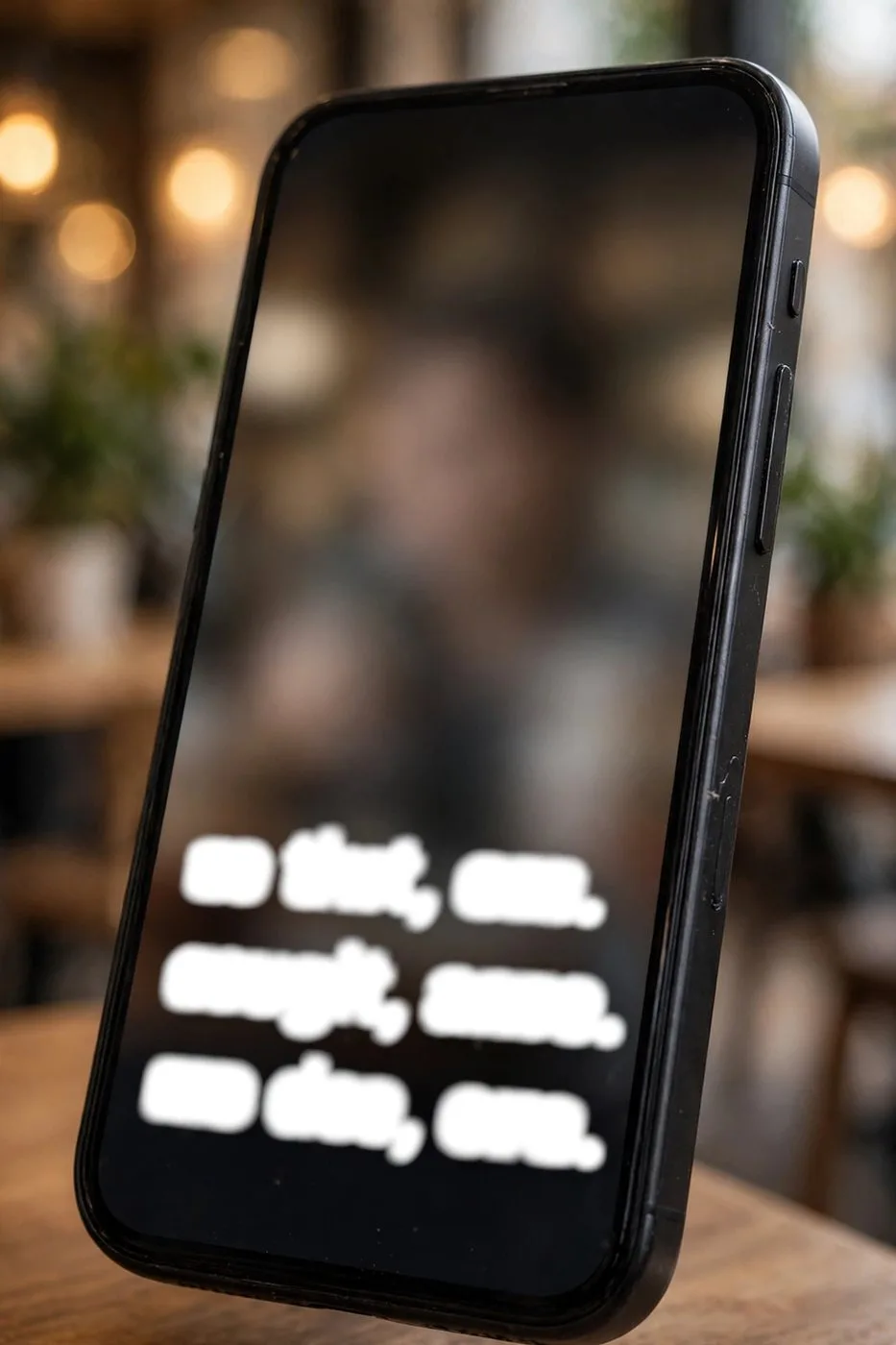
Before you generate anything, decide what your captions look like, because consistency becomes part of your brand. There are really two schools: word-by-word (each word pops as it is spoken, the karaoke style) and full-sentence captions (one or two lines at a time).
Word-by-word wins on retention for most talking-head clips. The moving highlight pulls the eye forward and makes even a slow speaker feel fast. Full sentences are calmer and work better for cinematic or aesthetic content. Neither is wrong. Pick one and stick with it for at least a month before judging.
Whatever you choose, lock in three things: font (bold sans-serif, always), size (big enough to read on a phone held at arm's length), and color (white with a dark outline survives every background). I have used the same style for a year. People recognize my clips before they read a word.
If you are unsure which style fits you, steal like an artist for a week. Save five clips whose captions you like, note what they have in common, and copy the pattern shamelessly. Every creator I know started by imitating someone else's caption style before developing their own.
Step 2: Generate the captions (the two-minute part)
This is the part that used to take three hours. Now: upload your finished clip to your captioning tool, or use the auto-caption feature in your AI clip maker, and let it transcribe. For a 60-second clip, generation takes about a minute. The auto captions short video workflow really is this boring now, and I mean that as a compliment.
In my experience, accuracy on clear speech is genuinely impressive these days. Normal conversational speech comes back nearly perfect. Accents, crosstalk, and mumbling drop that fast, which is why step 3 exists and will never go away.
One thing I do differently than most tutorials suggest: I generate captions AFTER the final edit, not before. Edit first, lock the timing, then caption the finished timeline. Generating on a rough cut means re-doing work every time you trim, and I learned that from painful experience. If you are starting from a long recording, use this long video to short video workflow to get clean clips first.
Step 3: Fix the mistakes AI always makes
AI captioning has exactly the same blind spots every time, so my review pass is basically a checklist now. Names: always wrong. Slang and niche terms: always wrong. Homophones, constantly: 'their' for 'there,' 'you're' for 'your.' And crosstalk, where two people speak at once, produces pure word salad.
My most embarrassing caption fail: a clip where I said 'niche market' and the captions confidently displayed something unrepeatable for six hours before a follower DM'd me. Review your captions. Every time. No exceptions.
The review pass takes me five to eight minutes per clip. I watch once at normal speed, reading only the captions, and fix as I go. It is the highest-leverage ten minutes in my whole workflow, because one wrong word in a caption can make an otherwise great clip look sloppy. If clips are still struggling to get traction, check our guide on why your AI clips get no views.

Pro tip:
Export an SRT caption file along with your video and keep it. When you cross-post to a platform months later, you can import the SRT instead of regenerating, and your corrected captions carry over. Future you says thanks.
Step 4: Format so people actually read them
Position first: lower-middle of the frame, never the very bottom. Every short-video app covers the bottom edge with its own buttons and progress bar. I lost a month of clips to the Shorts interface before someone pointed it out.
Timing: captions should change with the speech, not lag behind it. If your tool lets you adjust, keep each caption on screen for exactly the words being spoken. Laggy captions feel broken even when viewers cannot explain why.
Density: two lines max on screen at once, and keep each line short. A wall of text defeats the purpose. If a sentence is long, split it across two caption beats. Your viewer's thumb is already hovering over the scroll. Do not give it a reason.
One more decision: burn captions into the video or upload them as a separate caption file? For short-form, burn them in. Always. Separate caption files depend on the viewer having captions turned on, which most scrollers do not. Burned-in captions work for everyone, every time, with zero settings involved.
My 60-second caption checklist
Here is the review routine I run on every single clip before it ships. One: watch once, reading only captions, fix names and terms. Two: check position, lower-middle, clear of interface zones. Three: check timing, no lagging captions. Four: check the first three seconds, because the hook caption has to land instantly. Five: export and watch the export, because previews lie.
Total time: under ten minutes. Compare that to the three hours I used to spend, and you will understand why I get slightly emotional about auto captions. The auto captions short video routine is the single best time investment in my editing workflow, and it is not close.
Try Klipya Free
Upload your next episode and turn it into Shorts in minutes. Your future listeners are scrolling right now.
Generate Auto Captions Now →